> ## Documentation Index
> Fetch the complete documentation index at: https://docs.corunner.ai/llms.txt
> Use this file to discover all available pages before exploring further.
# Connect GitHub to Corunner for PR Signals and CI Context
> Connect repositories, pull requests, and CI checks. Corunner tracks PR signals, review load, and deploy activity. Also the trigger for the Doc-Writer Agent.
GitHub is a Direct Connection that lets Corunner read from your repositories, pull requests, checks, and commits. It is the foundation for engineering signals across the product and the trigger for the [Doc-Writer Agent](/agents/roster), which runs on PR merge.
## What Corunner does with GitHub
Agents watch pull requests and check runs to build **PR signals** (who is blocked on a review, how long PRs sit open, which branches are flaky) and **deploy tracking** based on merges to release branches. The Debug/Diagnostics Agent correlates GitHub commits with incidents to help diagnose regressions.
## What you get
* Read repos
* Read pull requests
* Read checks
* Read commits
## Authentication
Connect with OAuth. A GitHub organization owner approves the scopes and repository access during the connect flow.
## What breaks if you disconnect
* PR signals
* Review-load insights
* Deploy tracking
## Manage this connection
Open **Integrations** in the Corunner web app, then find **GitHub** under the **Direct Connections** tab.
 ## Approve access on GitHub
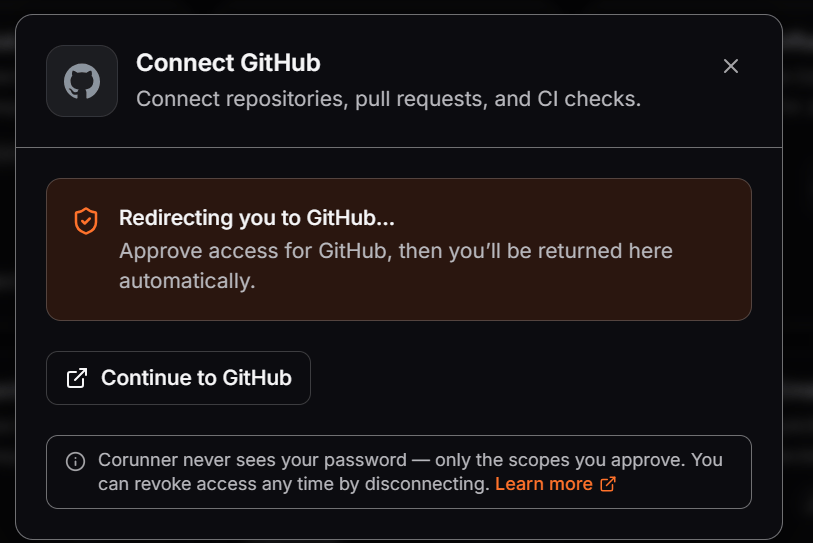
When you click **Connect GitHub**, Corunner opens a hosted OAuth modal titled **Connect GitHub** with the tagline *Connect repositories, pull requests, and CI checks.* The modal shows a **Redirecting you to GitHub…** callout and a fallback **Continue to GitHub** button in case the automatic redirect does not fire. An info callout below reminds you: *Corunner never sees your password — only the scopes you approve. You can revoke access any time by disconnecting.*
Click **Continue to GitHub** (or wait for the automatic redirect). GitHub takes over and asks where to install the **CorunnerAI** GitHub App.
## Approve access on GitHub
When you click **Connect GitHub**, Corunner opens a hosted OAuth modal titled **Connect GitHub** with the tagline *Connect repositories, pull requests, and CI checks.* The modal shows a **Redirecting you to GitHub…** callout and a fallback **Continue to GitHub** button in case the automatic redirect does not fire. An info callout below reminds you: *Corunner never sees your password — only the scopes you approve. You can revoke access any time by disconnecting.*
Click **Continue to GitHub** (or wait for the automatic redirect). GitHub takes over and asks where to install the **CorunnerAI** GitHub App.
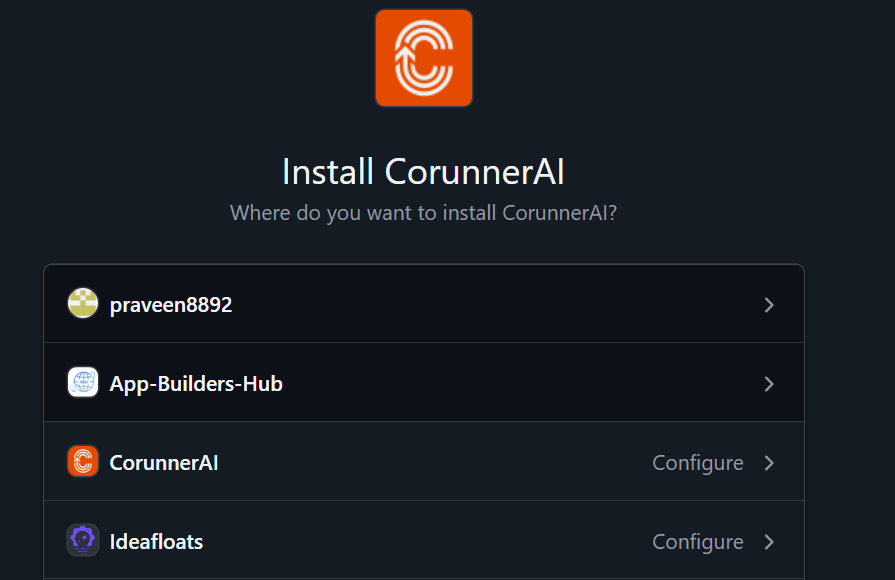 On the **Install CorunnerAI** screen:
Select the personal account or organization that owns the repositories you want Corunner to see. Only owners and members with the **Install GitHub Apps** permission can install on an organization.
On the next screen, choose **All repositories** or **Only select repositories** and pick the specific repos. You can change this later from **GitHub → Settings → Applications → Installed GitHub Apps → CorunnerAI → Configure**.
GitHub lists the scopes CorunnerAI is requesting: read repos, read pull requests, read checks, and read commits. These map to the capabilities listed above.
GitHub completes the install, then redirects your tab back to Corunner. The **Connect GitHub** modal flips to **GitHub connected successfully** and closes automatically. The GitHub card in Corunner now shows a green **Connected** badge with the connected account name.
If the automatic redirect back to Corunner does not happen (rare, usually a browser extension blocking it), return to the Corunner tab manually. Corunner re-checks the connection state whenever the tab regains focus, so the card will flip to **Connected** on its own.
For read-only access to code via the Model Context Protocol, see the [GitHub Copilot MCP](/integrations/mcp/github-copilot) connection.
## Grant observation consent
Connecting GitHub gives Corunner API access. Passive **observation** of specific repos, PRs, or issues is a separate consent step: click the **brain** icon on the GitHub card in **Integrations** to open the **Observation consent** drawer.
On the **Install CorunnerAI** screen:
Select the personal account or organization that owns the repositories you want Corunner to see. Only owners and members with the **Install GitHub Apps** permission can install on an organization.
On the next screen, choose **All repositories** or **Only select repositories** and pick the specific repos. You can change this later from **GitHub → Settings → Applications → Installed GitHub Apps → CorunnerAI → Configure**.
GitHub lists the scopes CorunnerAI is requesting: read repos, read pull requests, read checks, and read commits. These map to the capabilities listed above.
GitHub completes the install, then redirects your tab back to Corunner. The **Connect GitHub** modal flips to **GitHub connected successfully** and closes automatically. The GitHub card in Corunner now shows a green **Connected** badge with the connected account name.
If the automatic redirect back to Corunner does not happen (rare, usually a browser extension blocking it), return to the Corunner tab manually. Corunner re-checks the connection state whenever the tab regains focus, so the card will flip to **Connected** on its own.
For read-only access to code via the Model Context Protocol, see the [GitHub Copilot MCP](/integrations/mcp/github-copilot) connection.
## Grant observation consent
Connecting GitHub gives Corunner API access. Passive **observation** of specific repos, PRs, or issues is a separate consent step: click the **brain** icon on the GitHub card in **Integrations** to open the **Observation consent** drawer.
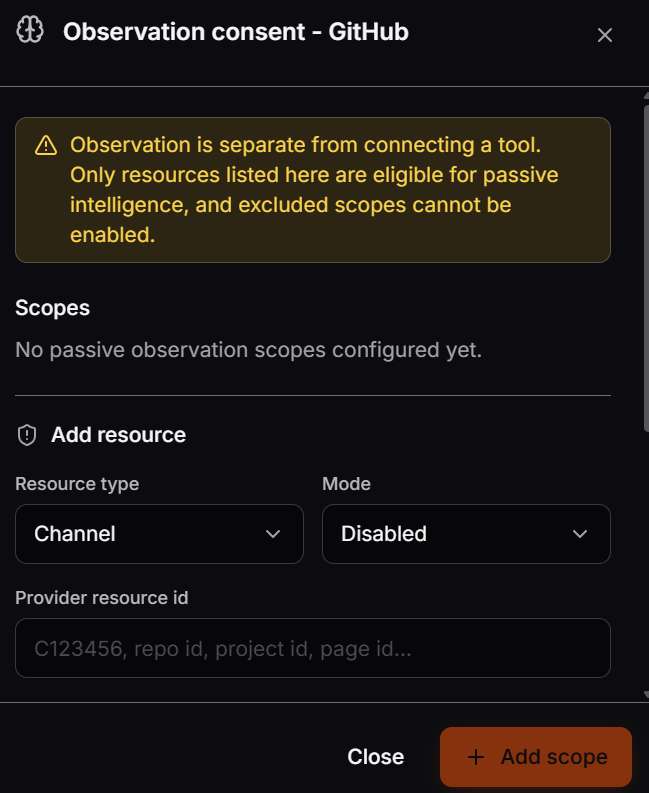 Register one scope per resource you want observed. Enter the GitHub **repo id** (or another provider resource id) in **Provider resource id**, give it a **Display label** such as `Platform repo`, set a **Raw TTL** between 1 and 1440 minutes, and pick a **Sensitivity**. Start with Mode set to **Disabled** or **Shadow**, then switch to **Active** once you are ready.
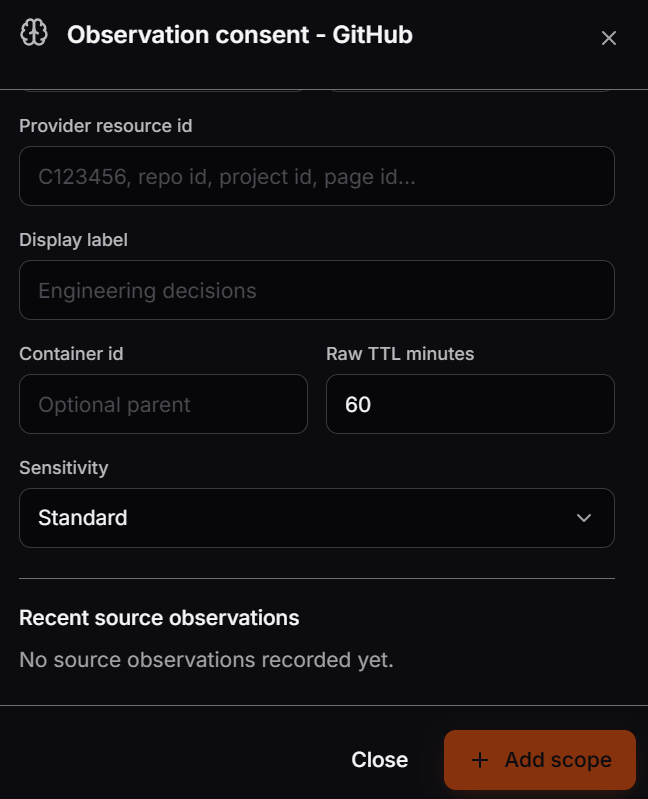 The same drawer is available on every connected tool card. For the full walkthrough of modes, sensitivity levels, and Recent source observations, see [Observation consent](/integrations/observation-consent).