> ## Documentation Index
> Fetch the complete documentation index at: https://docs.corunner.ai/llms.txt
> Use this file to discover all available pages before exploring further.
# Connect Grafana Loki to Corunner for Log Investigation
> Investigate production logs with Grafana Loki. Corunner reads logs, discovers labels, and generates evidence links for incident debugging.
Grafana Loki is a Direct Connection that lets Corunner investigate production logs. Once connected, the Debug/Diagnostics Agent can query logs, discover the labels available in your Loki setup, and generate evidence links you can paste back into a Slack or Teams thread.
## What Corunner does with Grafana Loki
Agents run log queries when investigating incidents, discover which labels are available so queries stay in scope, and produce evidence links that let humans open Grafana with the exact query pre-loaded.
## What you get
* Read logs
* Discover labels
* Generate evidence links
## Authentication
Authentication depends on the connection mode. Grafana Cloud uses a bearer token. A self-hosted Grafana instance supports a bearer token or basic authentication. A direct Loki connection supports no authentication, a bearer token, or basic authentication.
## What breaks if you disconnect
* Log investigation
* Incident evidence
## Manage this connection
Open **Integrations** in the Corunner web app, then find **Grafana Loki** under the **Direct Connections** tab.
## Connect Grafana Loki
Open the **Connect Grafana Loki** dialog and choose the mode that matches your deployment.
### 1. Grafana Cloud
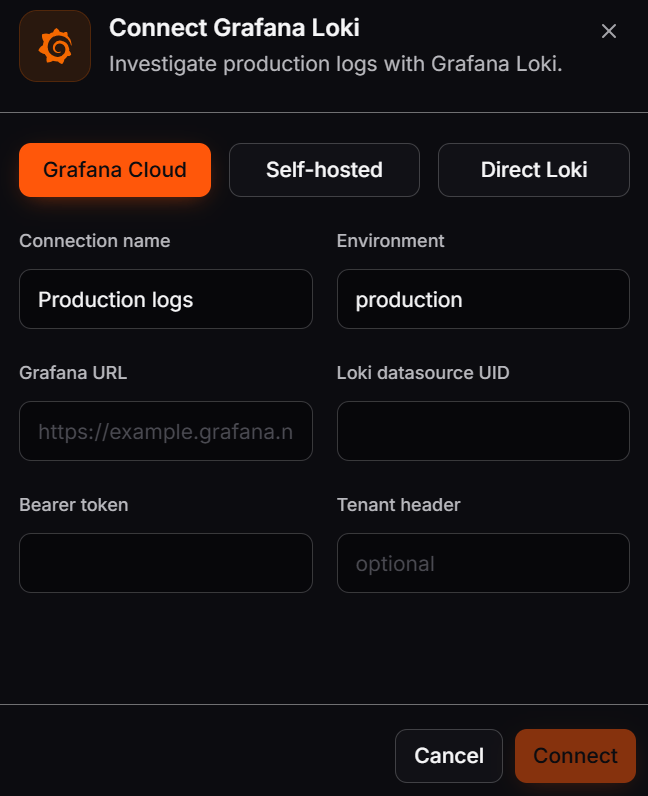
Choose **Grafana Cloud**, then enter a connection name, environment, Grafana URL, Loki datasource UID, and bearer token. Add a tenant header only if your Grafana Cloud configuration requires one.
 ### 2. Self-hosted
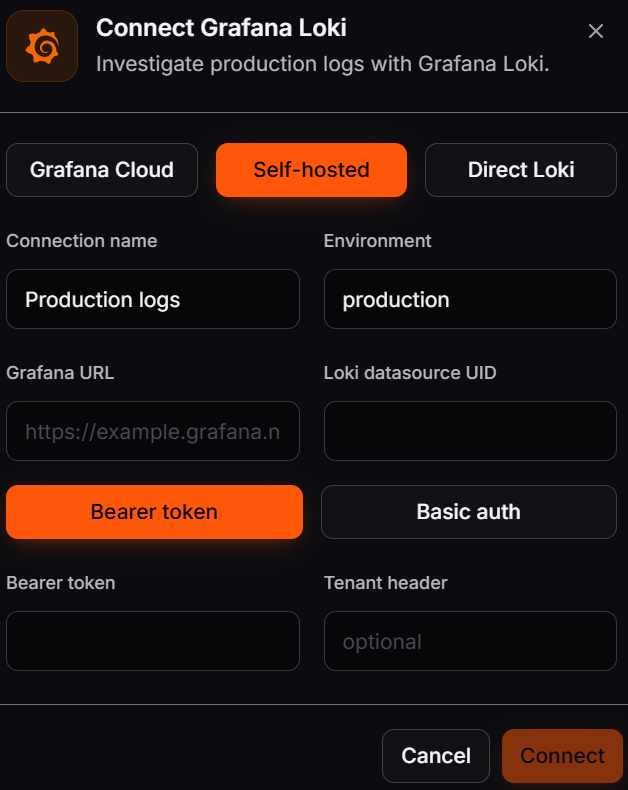
Choose **Self-hosted**, then enter a connection name, environment, Grafana URL, and Loki datasource UID. Select **Bearer token** or **Basic auth** and provide the matching credentials. Add a tenant header only when your deployment uses one.
### 2. Self-hosted
Choose **Self-hosted**, then enter a connection name, environment, Grafana URL, and Loki datasource UID. Select **Bearer token** or **Basic auth** and provide the matching credentials. Add a tenant header only when your deployment uses one.
 ### 3. Direct Loki
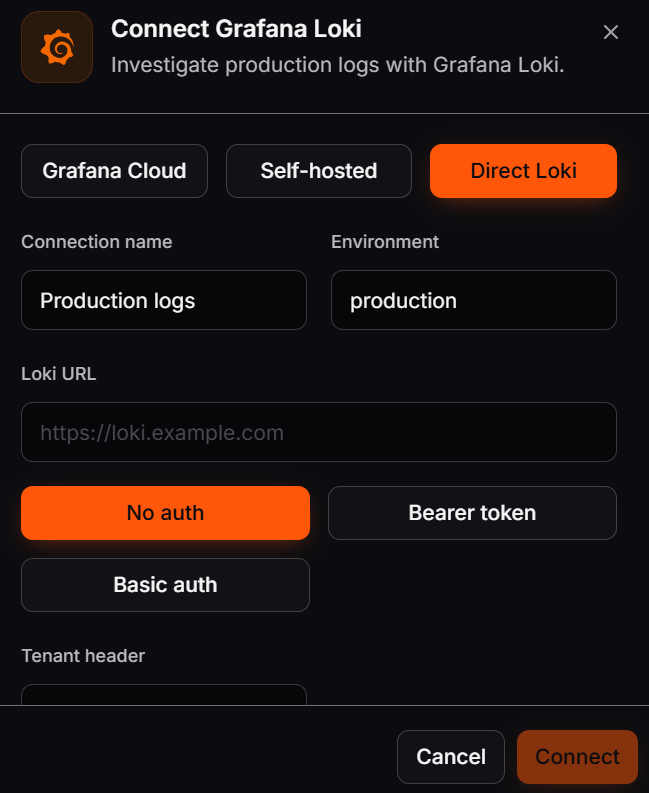
Choose **Direct Loki** when Corunner should connect to the Loki endpoint without going through Grafana. Enter a connection name, environment, and Loki URL. Then select **No auth**, **Bearer token**, or **Basic auth** to match your Loki deployment.
### 3. Direct Loki
Choose **Direct Loki** when Corunner should connect to the Loki endpoint without going through Grafana. Enter a connection name, environment, and Loki URL. Then select **No auth**, **Bearer token**, or **Basic auth** to match your Loki deployment.
 The **Tenant header** is optional. Leave it empty unless your Loki deployment uses tenant-based isolation and requires a tenant identifier with each request.
After completing the fields for your selected mode, click **Connect**. Corunner verifies the endpoint and credentials before saving the connection.
The **Tenant header** is optional. Leave it empty unless your Loki deployment uses tenant-based isolation and requires a tenant identifier with each request.
After completing the fields for your selected mode, click **Connect**. Corunner verifies the endpoint and credentials before saving the connection.