> ## Documentation Index
> Fetch the complete documentation index at: https://docs.corunner.ai/llms.txt
> Use this file to discover all available pages before exploring further.
# Connect Linear to Corunner for Issues and Standup Enrichment
> Track engineering work, issues, and project execution. Corunner reads Linear issues, creates new ones, updates status, and pulls blockers into standups.
Linear is a Direct Connection that lets Corunner track engineering work, issues, and project execution. Once connected, agents can read your Linear workspace, create issues on your behalf, update status, and pull blockers into standups automatically.
## What Corunner does with Linear
Corunner treats Linear as a source of truth for engineering work. The Standup Agent pulls in-flight and blocked issues into standup prompts. The Engineering Agent references the issue graph when reasoning about scope, ownership, or delivery risk. Actions like "file a ticket" from chat write directly into Linear.
## What you get
* Read issues
* Create issue
* Update status
* Fetch blockers
## Authentication
Connect with OAuth. A Linear workspace admin approves the scopes during the connect flow.
## What breaks if you disconnect
* Issue sync
* Blocker tracking
* Standup enrichment
## Manage this connection
Open **Integrations** in the Corunner web app, then find **Linear** under the **Direct Connections** tab.
## Connect Linear
When you click **Connect Linear**, Corunner opens the **Connect Linear** dialog and redirects you to Linear. If the redirect does not start automatically, click **Continue to Linear**.
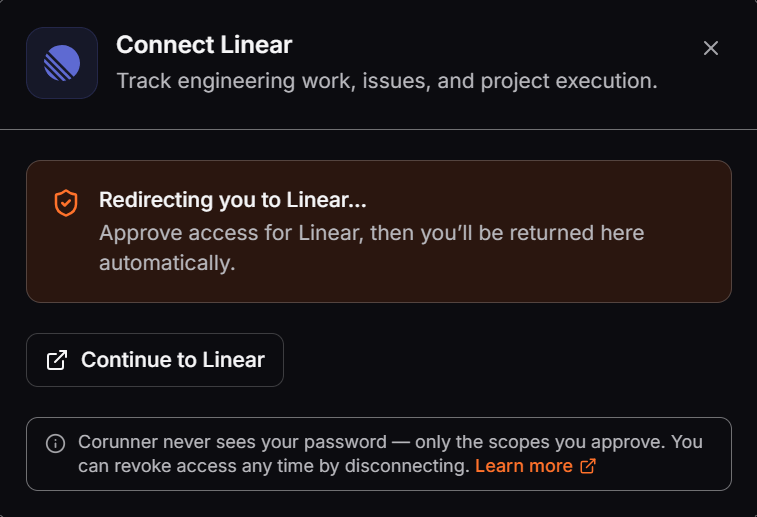 Corunner never receives your Linear password. It receives only the permissions you approve, and you can revoke access by disconnecting the integration.
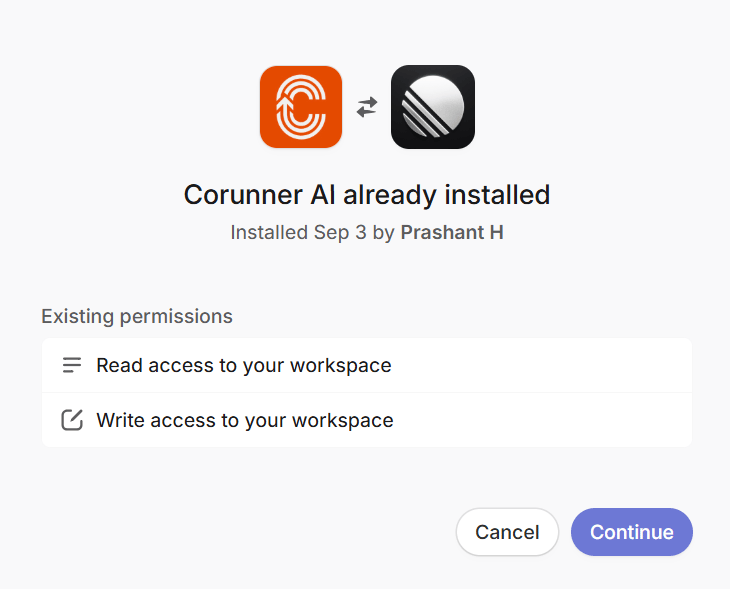
Linear then displays the access granted to the Corunner AI application.
Corunner never receives your Linear password. It receives only the permissions you approve, and you can revoke access by disconnecting the integration.
Linear then displays the access granted to the Corunner AI application.
 Confirm that you are connecting the intended Linear workspace.
Confirm that Corunner AI has read and write access. Read access lets Corunner retrieve issues and blockers. Write access lets it create issues and update their status.
Linear approves the connection and returns you to Corunner. The Linear card under **Direct Connections** then shows the connected state.
Confirm that you are connecting the intended Linear workspace.
Confirm that Corunner AI has read and write access. Read access lets Corunner retrieve issues and blockers. Write access lets it create issues and update their status.
Linear approves the connection and returns you to Corunner. The Linear card under **Direct Connections** then shows the connected state.