> ## Documentation Index
> Fetch the complete documentation index at: https://docs.corunner.ai/llms.txt
> Use this file to discover all available pages before exploring further.
# Connect Zoho Books to Corunner for AR, AP, and Invoices
> Read invoices, expenses, and contacts; create invoices and expenses in Zoho Books. Corunner uses this for finance signals, invoice context, and AR/AP.
Zoho Books is a Direct Connection that lets Corunner read invoices, expenses, and contacts, and write invoices and expenses back into Zoho Books. This is one of the few finance integrations where Corunner can also create records with approval.
## What Corunner does with Zoho Books
Agents read your ledger for finance signals, invoice context, and AR/AP visibility. When granted approval, the Finance Agent can create invoices and expenses on your behalf so admin-heavy work does not accumulate.
## What you get
* Read invoices
* Read expenses
* Read contacts
* Create invoices
* Create expenses
## Authentication
Connect with OAuth. A Zoho Books admin approves the scopes during the connect flow.
## What breaks if you disconnect
* Finance signals
* Invoice context
## Manage this connection
Open **Integrations** in the Corunner web app, then find **Zoho Books** under the **Direct Connections** tab.
## Connect Zoho Books
When you click **Connect Zoho Books**, Corunner opens the connection dialog and redirects you to Zoho. If the redirect does not start automatically, click **Continue to Zoho Books**.
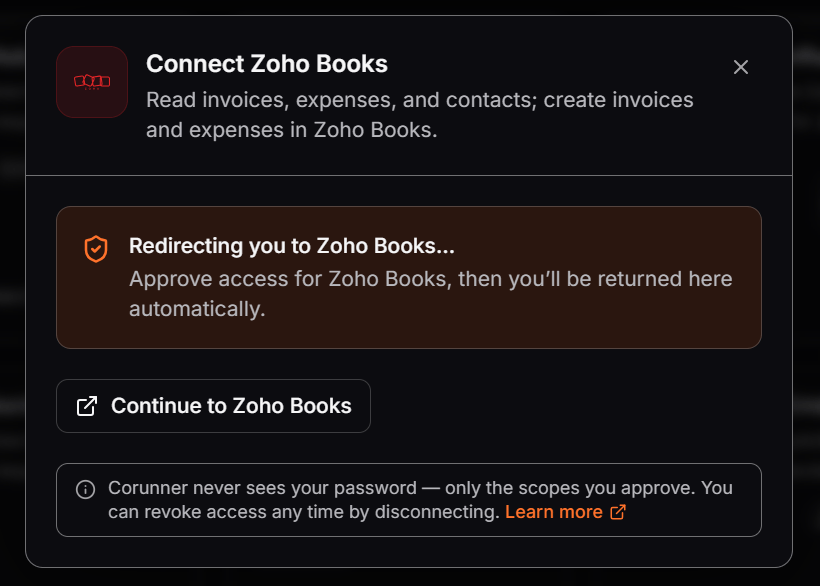 Corunner never receives your Zoho password. It receives only the scopes you approve, and you can revoke access at any time by disconnecting the integration.
## Sign in to Zoho
Zoho Accounts asks you to sign in before you can review and approve the requested access.
Corunner never receives your Zoho password. It receives only the scopes you approve, and you can revoke access at any time by disconnecting the integration.
## Sign in to Zoho
Zoho Accounts asks you to sign in before you can review and approve the requested access.
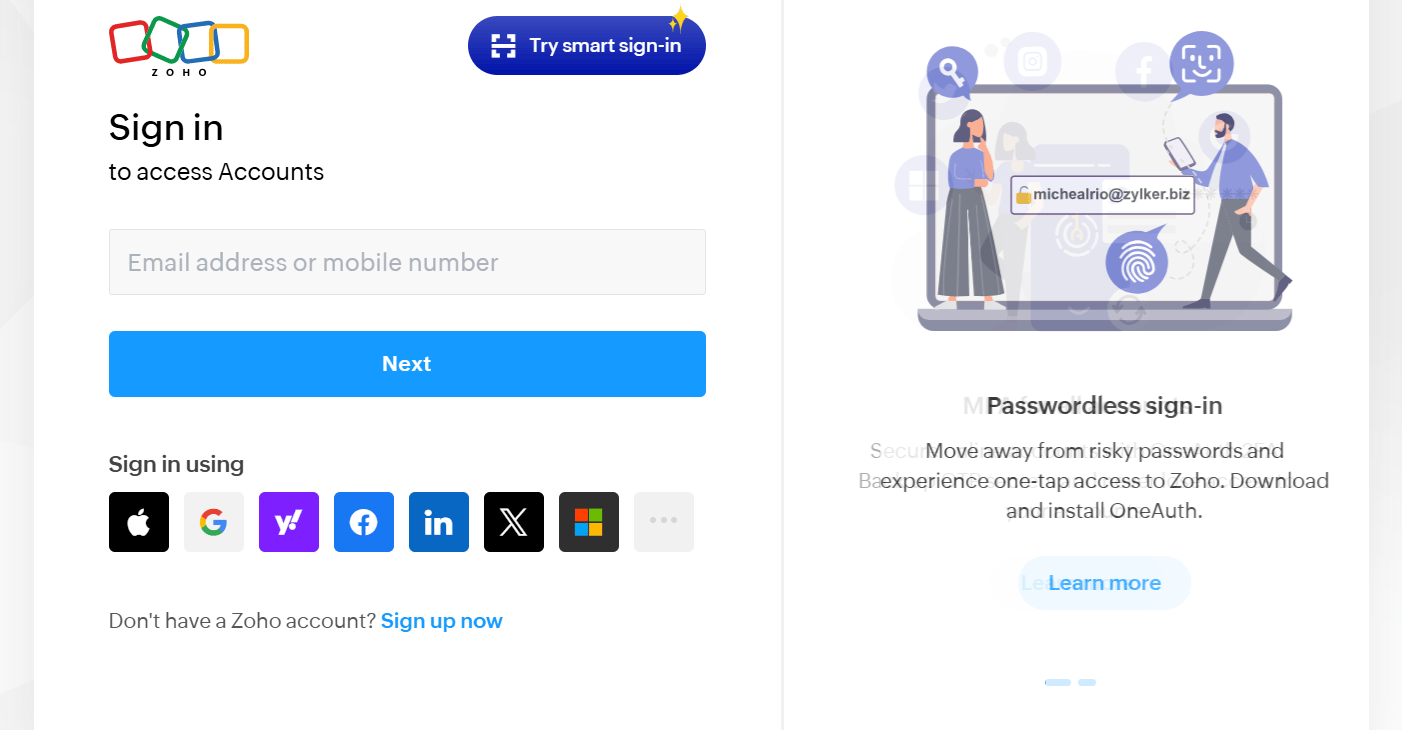 Enter the email address or mobile number associated with the Zoho Books organization you want to connect, then click **Next**. You can also use one of the available identity providers.
Confirm that you are connecting the intended Zoho organization. Review the scopes Corunner requests for invoices, expenses, and contacts.
Approve access in Zoho. Zoho redirects you to Corunner, where the Zoho Books card shows the connected state.
Enter the email address or mobile number associated with the Zoho Books organization you want to connect, then click **Next**. You can also use one of the available identity providers.
Confirm that you are connecting the intended Zoho organization. Review the scopes Corunner requests for invoices, expenses, and contacts.
Approve access in Zoho. Zoho redirects you to Corunner, where the Zoho Books card shows the connected state.