

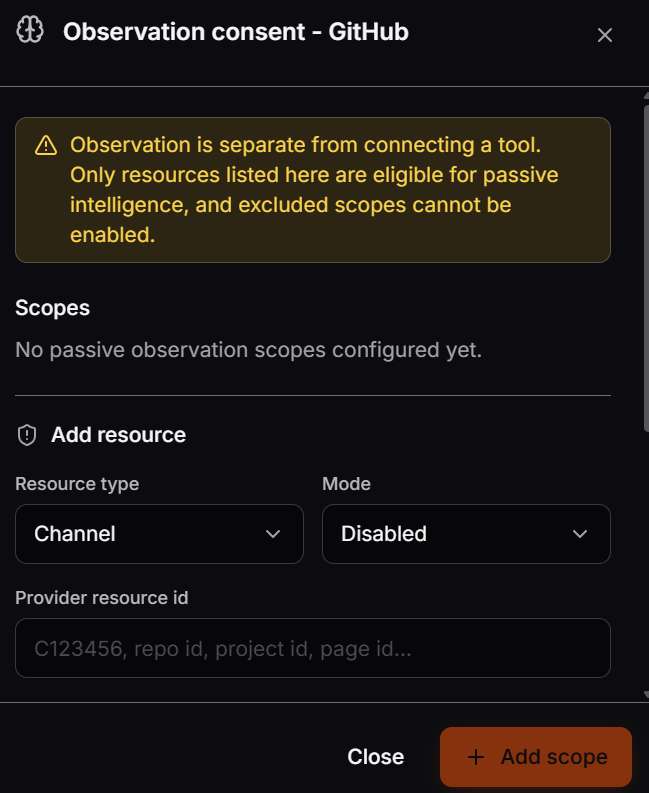
Observation consent drawer opened from a connected GitHub tool card.
Open the drawer
1
Open Integrations
In the Corunner web app, open Integrations and find the connected tool.
2
Click the brain icon on the card
In the action row on the connected card, click the brain icon (tooltip: Observation consent). Only admins see the action row.
3
Review existing scopes
The Scopes list shows every resource that already has passive observation configured for this tool. A new connection shows No passive observation scopes configured yet.
Add a resource
The Add resource form registers one specific resource inside the connected tool as an observation scope.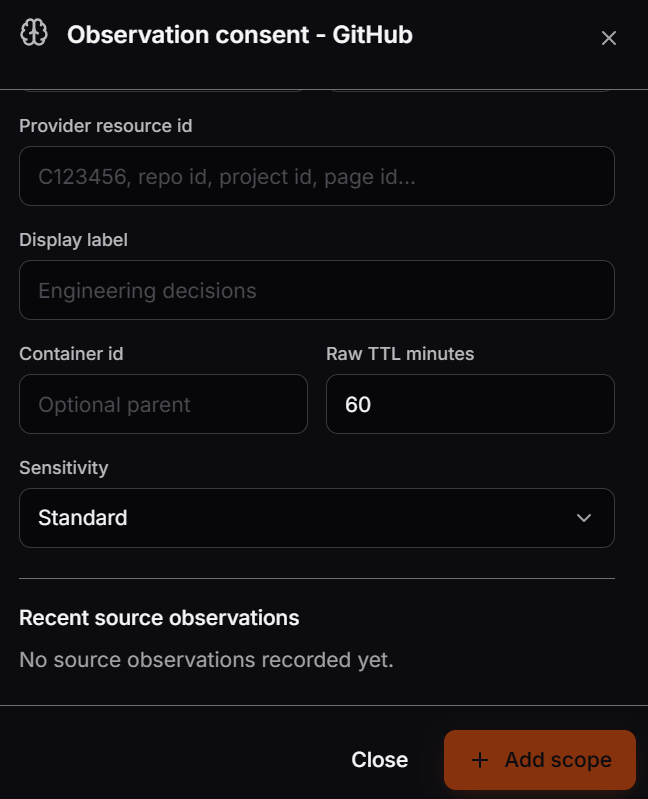
Add resource form with fields for Provider resource id, Display label, Container id, Raw TTL minutes, and Sensitivity.
1
Choose the Resource type
Pick what kind of resource this scope refers to: Channel, Thread, Work item, Change request, Repository, Document, Meeting, Mailbox, Artifact, or MCP resource.
2
Pick the Mode
Start in Disabled while you configure the scope, then switch to Shadow to observe without acting, or Active to let agents use the observations. Excluded sensitivity forces the mode to Disabled and cannot be enabled.
3
Enter the Provider resource id
Paste the identifier the source system uses for the resource (Slack channel id such as
C123456, a GitHub repo id, a Jira project id, a Confluence page id). This is the field the drawer uses to match incoming events to the scope.4
Add a Display label (optional)
Give the scope a recognizable name, such as Engineering decisions, so it is easier to identify in the Scopes list than by raw id.
5
Add a Container id (optional)
Enter a parent identifier when the source system nests resources, for example a workspace id that contains many channels.
6
Set the Raw TTL minutes
Enter how long, in minutes, Corunner keeps the raw observed content before it is removed. Must be between 1 and 1440 minutes. The default is 60.
7
Choose the Sensitivity
Select Standard, Restricted, or Excluded. Excluded blocks observation entirely and forces Mode to Disabled.
8
Click Add scope
Corunner creates the scope. It appears in the Scopes list at the top of the drawer where you can adjust its mode or sensitivity later.
Modes and sensitivity
Changing a scope’s sensitivity to Excluded automatically switches its Mode to Disabled. You cannot re-enable the mode until you also change the sensitivity back.
Recent source observations
The Recent source observations panel lists the events Corunner has already ingested against this connection’s scopes. Each entry shows the external item id, resource type, event type, occurrence time, and processing status. For each source observation you can:- Reprocess — re-run ingestion for the item and reset its retry count. Requires a reason.
- Purge — remove the raw stored content for the item. Requires a reason and is destructive.
Related
Direct Connections
Browse all Direct Connections that support Observation consent.
Governance
Review workspace-level policies that apply to observed content.