

What you get
- Read CloudWatch metrics
- Read alarm details and alarm history
- List metrics
- Query CloudWatch Logs Insights
- Read log anomaly information
Before you start
You need permission to create an IAM role in the AWS account that contains the CloudWatch data. You also need the AWS region where Corunner should query CloudWatch.Create the AWS IAM role
Create a new IAM role for Corunner in AWS. When AWS asks for a trust policy, paste the following policy. Replace<CORUNNER_AWS_ACCOUNT_ID> with the AWS account ID provided by Corunner. Keep the external ID exactly as shown in the CloudWatch connection dialog.
IAM trust policy (AssumeRole)
Read-only IAM permission policy
Connect CloudWatch
1
Open the CloudWatch connection
In the Corunner web app, open Integrations, select MCP Servers, and choose AWS CloudWatch.
2
Enter the connection details
Enter a connection name, choose the AWS region, and paste the IAM Role ARN for the role you created. Corunner displays the external ID and the policies required for the connection.
3
Configure AWS and connect
Confirm that the trust policy uses the displayed external ID and that the read-only permission policy is attached to the role. Return to Corunner and click Connect. Corunner tests the role before saving the connection.
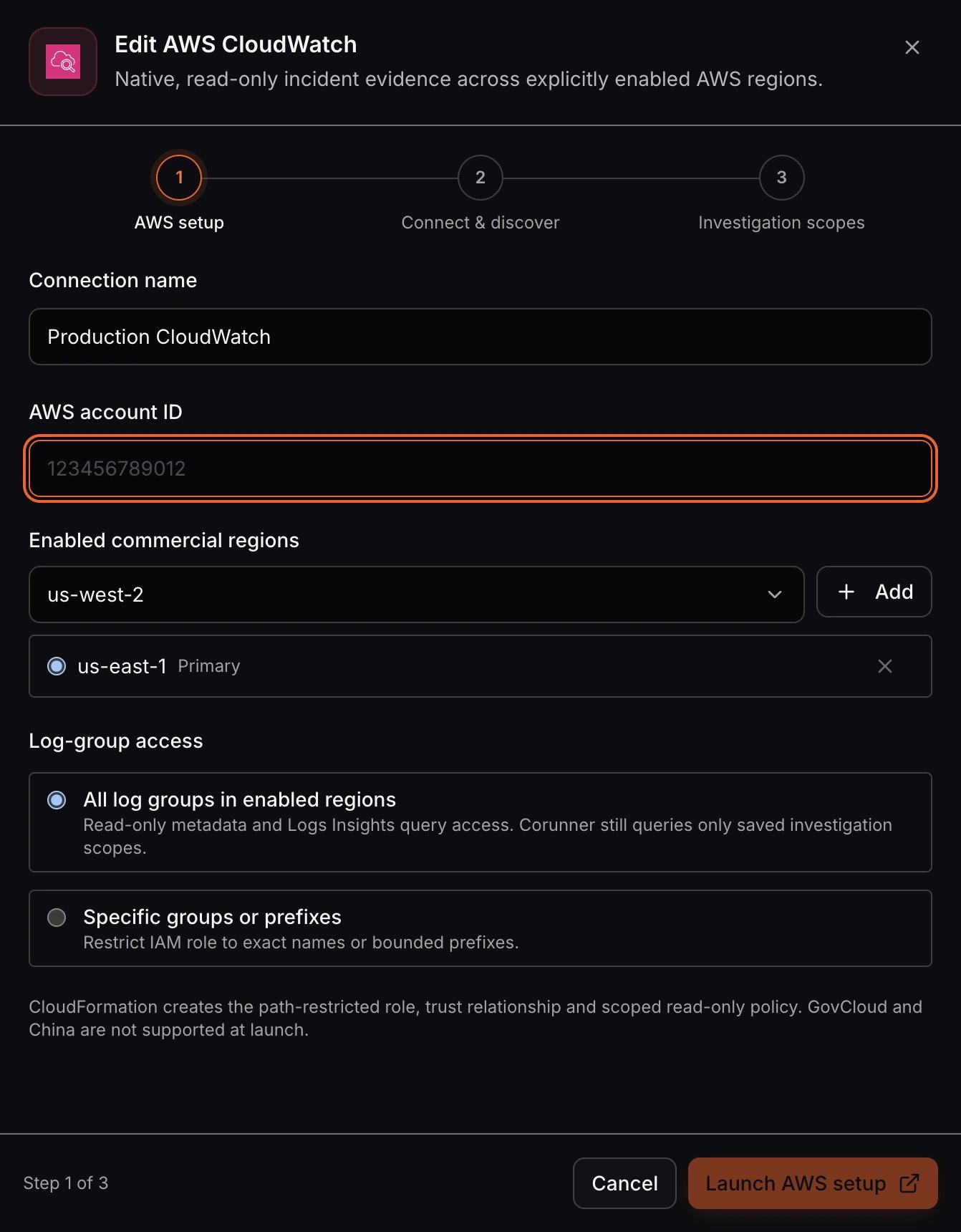
Enter the connection name, AWS region, and IAM Role ARN.

Copy the external ID and IAM trust policy into AWS IAM.

Copy the read-only IAM permission policy, then test the connection.
Troubleshooting
- Access denied: Verify that the IAM Role ARN is correct and that the role trust policy names the Corunner task role.
- Invalid external ID: Copy the external ID from the current CloudWatch connection dialog. It must match the value in the trust policy exactly.
- No data returned: Confirm that the selected AWS region contains the metrics or log groups you want to query.