

The CloudWatch connection is for investigation only. It does not modify AWS resources, restart services, change alarms, edit log groups, or deploy application code.
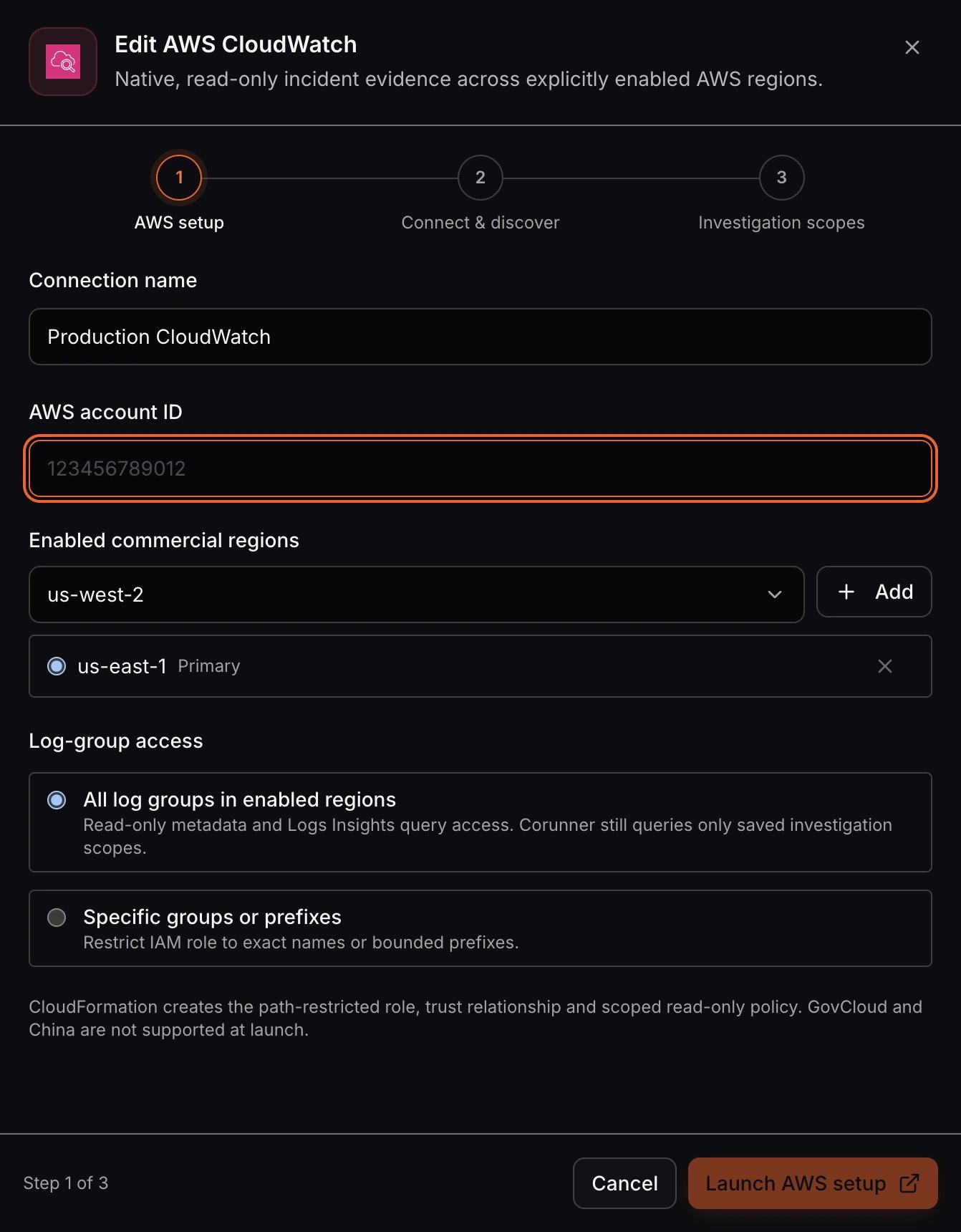
AWS CloudWatch connection setup in Corunner.
Setup at a glance
- AWS setup: Enter the account, regions, and log-group access in Corunner, then approve the prefilled CloudFormation stack in AWS.
- Connect and discover: Connect the verified role and discover CloudWatch resource metadata.
- Investigation scopes: Select and save at least one log group that Corunner may investigate.
Before you begin
You need:- Permission to manage integrations for the Corunner workspace.
- The 12-digit AWS account ID containing the CloudWatch data.
- The AWS regions containing the log groups and services Corunner should investigate.
- Access to the AWS Management Console.
- Permission to create or update a CloudFormation stack that creates a named IAM role and inline IAM policy.
Choose the access boundary
During setup, configure both of these boundaries:Enabled regions
Select every commercial AWS region that contains services Corunner may need to investigate. Mark one region as Primary. The primary region is the connection default and is used when the CloudFormation stack is first created; it does not prevent investigations in other enabled regions.Log-group access
Choose one of these options:- All log groups in enabled regions lets Corunner discover and investigate any current or future log group in those regions.
- Specific groups or prefixes restricts the IAM role to named log groups or bounded prefixes, such as
/ecs/production/or/aws/lambda/production-.
Connect CloudWatch
1. Prepare the AWS setup in Corunner
- Sign in to the Corunner web app and select the workspace that should use the AWS account.
- Open Integrations, select AWS CloudWatch, and click Connect.
- Enter a clear Connection name and the 12-digit AWS account ID.
- Under Enabled commercial regions, add the required regions and mark one as Primary.
- Under Log-group access, choose all log groups or add at least one exact group or prefix for each required region.
- Click Launch AWS setup.
2. Approve the CloudFormation stack in AWS
- Sign in to AWS and confirm that the account matches the account ID entered in Corunner.
- Confirm that the AWS console is in the primary region selected by Corunner.
- Review the prefilled CloudFormation template, stack name, Corunner principal ARN, External ID, role name, and regional log-group permissions.
- Do not change the prefilled parameters. Changing them causes verification to fail.
- Acknowledge the named IAM resource requirement and click Create stack. For an existing connection, AWS may show Update stack.
- Wait for
CREATE_COMPLETEorUPDATE_COMPLETE.
/corunner-observability/. Its trust policy requires Corunner’s configured integration principal and the exact Corunner-issued External ID. Its read-only policy is bounded by the regions and log-group access you selected.
3. Connect and discover resources
After Corunner displays AWS setup verified:- Review the role ARN and enabled regions.
- Click Connect and discover.
4. Choose investigation scopes
- Use Filter log groups to find a group by name.
- Keep Select all discovered log groups enabled, or select only the groups Corunner should investigate.
- Review each group’s region and click Save N scopes.
Use the connection
Ask Corunner to investigate an incident and include the affected service, time range, symptom, and region when known.What Corunner reads
- CloudWatch metrics and metric data
- Active alarms and alarm history
- CloudWatch Logs metadata
- Scoped CloudWatch Logs Insights queries and results
logs:StopQuery only lets Corunner stop its own investigation queries when work is cancelled, times out, or reaches its scan limit. It does not alter stored logs.
Cost and query controls
AWS may charge for CloudWatch Logs Insights based on data scanned. Corunner limits unnecessary scanning by querying only saved scopes, estimating scan size, using summary queries first, and sharing a scan budget across regions and retries.
AWS estimates are approximate. Review your AWS CloudWatch pricing and usage policies before enabling broad log-group access.
Security and data handling
The connection uses the exact stored role ARN, temporary STS credentials, an External ID tied to the workspace, explicit regions, explicit investigation scopes, and a read-only AWS policy. Corunner does not use this integration as a secondary log archive. Raw CloudWatch telemetry is not persisted by default; redacted evidence needed for continuation may be kept temporarily for up to 24 hours.Update or disconnect
Use Edit on the AWS CloudWatch integration to change regions, the primary region, log-group access, or investigation scopes. Launch the AWS setup again and complete the CloudFormation update before reconnecting and rediscovering resources. Disconnecting in Corunner removes the workspace connection and prevents new investigations, but it does not delete the AWS CloudFormation stack. To revoke AWS-side access completely, disconnect in Corunner, open CloudFormation in the stack’s region, delete thecorunner-cloudwatch-<workspace-id> stack, and confirm that the generated role was removed.
Troubleshooting
- The AWS tab did not open: Allow pop-ups for Corunner and click Open AWS setup.
- CloudFormation is still running: Wait for
CREATE_COMPLETEorUPDATE_COMPLETE, then click Check setup now. - Verification reports a mismatch: Start a new AWS setup for the correct account and regions. Do not reuse parameters from another workspace.
- No log groups are discovered: Check the account, enabled regions, exact names or prefixes, and the role’s
logs:DescribeLogGroupspermission. - Evidence is limited: Verify the log group is in a saved scope and narrow the request to a service and time window.