

What Corunner does with GitLab
Agents track open merge requests, watch pipeline runs for failures and flakiness, and surface review-load imbalances so nobody becomes a bottleneck. Commit history feeds context when the Debug/Diagnostics Agent correlates recent changes with incidents.What you get
- Read repos
- Read merge requests
- Read pipelines
- Read commits
Authentication
Connect with a personal access token from GitLab. Create the token with the required read scopes, then paste it into the connection card in Corunner.What breaks if you disconnect
- MR signals
- Pipeline health
Manage this connection
Open Integrations in the Corunner web app, then find GitLab under the Direct Connections tab.Connect GitLab
Enter the GitLab connection details in the Connect GitLab dialog. The requiredapi scope lets Corunner read repositories, merge requests, pipelines, and commits.
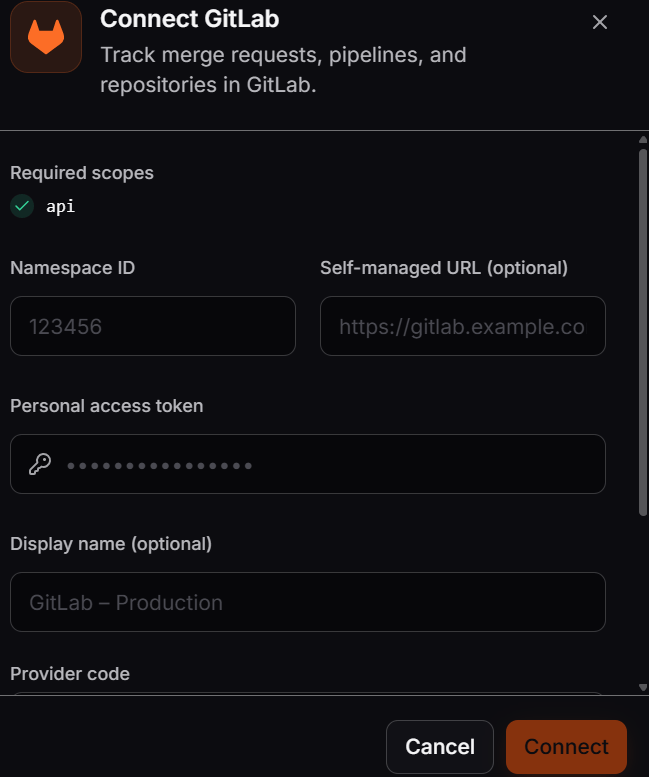
Enter your GitLab namespace and personal access token in Corunner.
1
Enter the namespace ID
Enter the numeric ID of the GitLab namespace you want Corunner to access.
2
Enter a self-managed URL if needed
If you use a self-managed GitLab instance, enter its base URL. Leave this field empty when you use GitLab.com.
3
Enter the personal access token
Paste a GitLab personal access token with the required
api scope.4
Complete the connection
Optionally add a display name and provider code, then click Connect. Corunner verifies the credential immediately.