

What Corunner does with GitHub
Agents watch pull requests and check runs to build PR signals (who is blocked on a review, how long PRs sit open, which branches are flaky) and deploy tracking based on merges to release branches. The Debug/Diagnostics Agent correlates GitHub commits with incidents to help diagnose regressions.What you get
- Read repos
- Read pull requests
- Read checks
- Read commits
Authentication
Connect with OAuth. A GitHub organization owner approves the scopes and repository access during the connect flow.What breaks if you disconnect
- PR signals
- Review-load insights
- Deploy tracking
Manage this connection
Open Integrations in the Corunner web app, then find GitHub under the Direct Connections tab.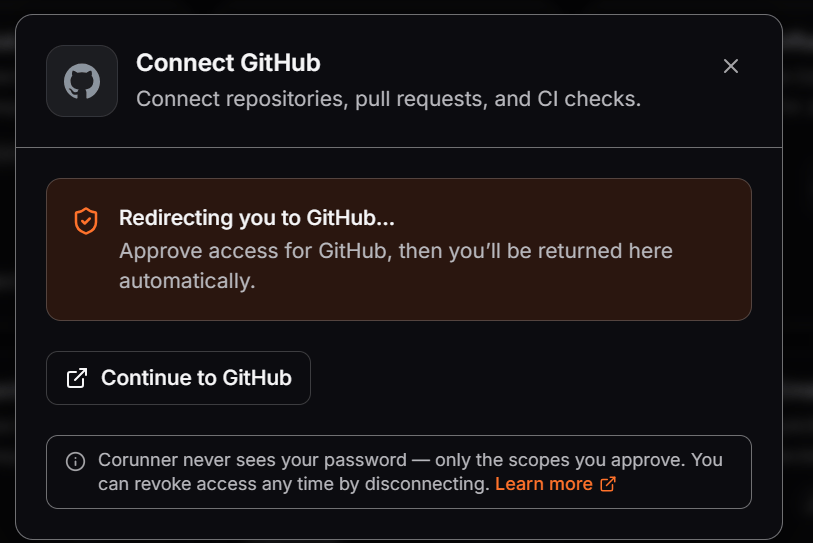
GitHub card under the Direct Connections tab in Corunner.
Approve access on GitHub
When you click Connect GitHub, Corunner opens a hosted OAuth modal titled Connect GitHub with the tagline Connect repositories, pull requests, and CI checks. The modal shows a Redirecting you to GitHub… callout and a fallback Continue to GitHub button in case the automatic redirect does not fire. An info callout below reminds you: Corunner never sees your password — only the scopes you approve. You can revoke access any time by disconnecting. Click Continue to GitHub (or wait for the automatic redirect). GitHub takes over and asks where to install the CorunnerAI GitHub App.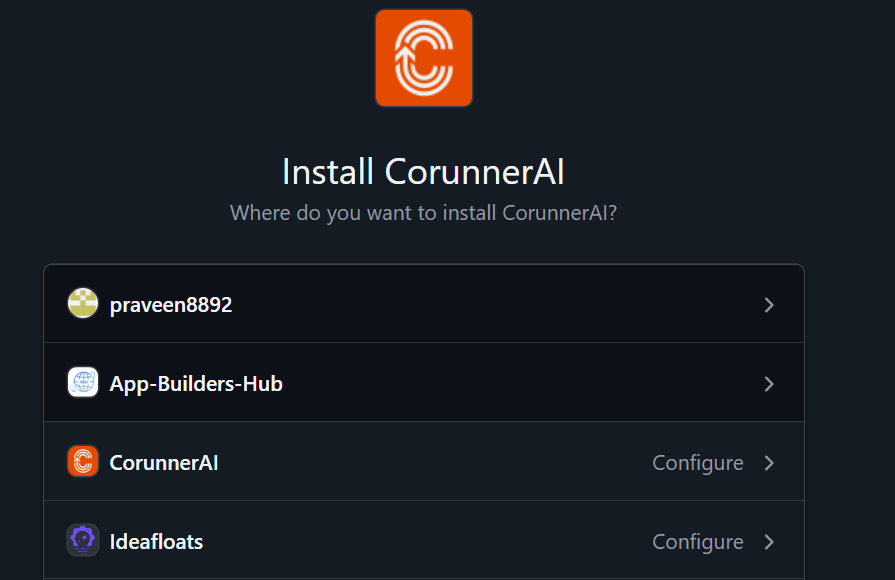
GitHub prompts you to choose the account or organization to install "CorunnerAI" in.
1
Pick the target account or organization
Select the personal account or organization that owns the repositories you want Corunner to see. Only owners and members with the Install GitHub Apps permission can install on an organization.
2
Choose repository access
On the next screen, choose All repositories or Only select repositories and pick the specific repos. You can change this later from GitHub → Settings → Applications → Installed GitHub Apps → CorunnerAI → Configure.
3
Review permissions
GitHub lists the scopes CorunnerAI is requesting: read repos, read pull requests, read checks, and read commits. These map to the capabilities listed above.
4
Click Install & Authorize
GitHub completes the install, then redirects your tab back to Corunner. The Connect GitHub modal flips to GitHub connected successfully and closes automatically. The GitHub card in Corunner now shows a green Connected badge with the connected account name.
Grant observation consent
Connecting GitHub gives Corunner API access. Passive observation of specific repos, PRs, or issues is a separate consent step: click the brain icon on the GitHub card in Integrations to open the Observation consent drawer.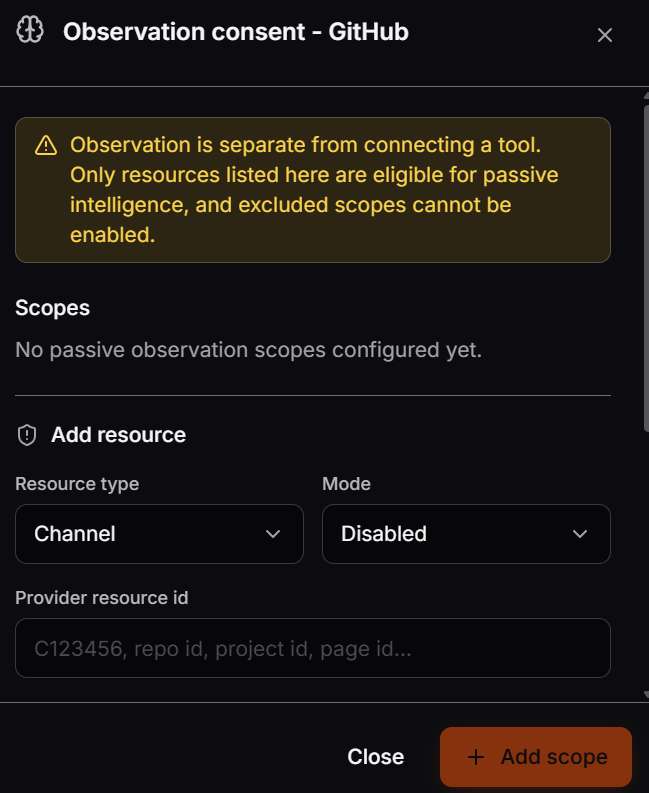
Observation consent drawer opened from the connected GitHub card.
Platform repo, set a Raw TTL between 1 and 1440 minutes, and pick a Sensitivity. Start with Mode set to Disabled or Shadow, then switch to Active once you are ready.
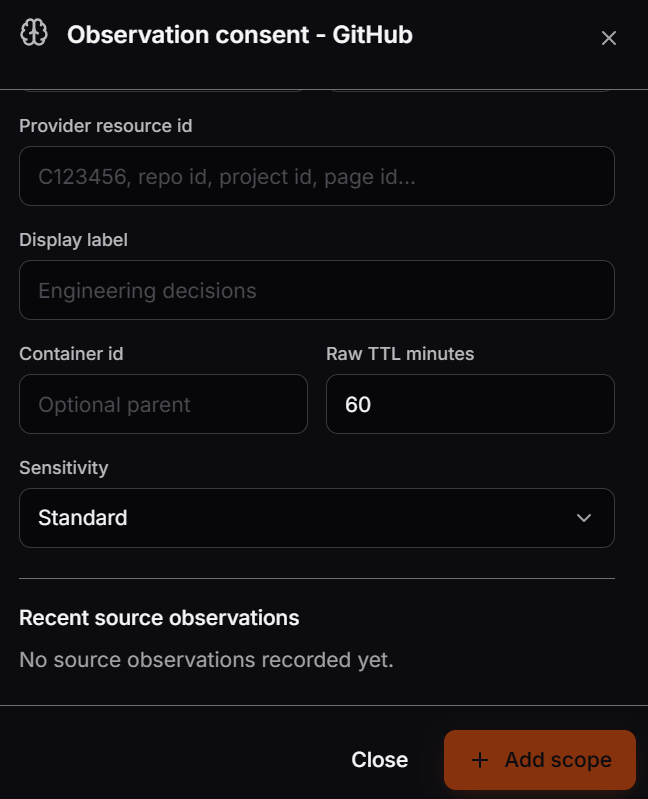
Add resource form fields inside the Observation consent drawer.