

This is not a general email inbox integration. It does not read your Gmail or Outlook inbox. It only receives signed decision emails you forward to Corunner.
What Corunner does with Inbound Email
Corunner listens for signed email events and stages them as decision approvals. A curator reviews each staged decision and either captures it into memory or rejects it. Use this when a decision was made over email and you want it recorded without retyping it in chat.What you get
- Receive signed email events
- Stage decision approvals
Authentication
Connect with an API key you generate in Corunner. Configure the forwarding rules in your email provider to send the target messages to the Corunner inbound address.What breaks if you disconnect
- Email decision capture
Manage this connection
Open Integrations in the Corunner web app, then find Inbound Email under the Direct Connections tab.Connect Inbound Email
Open the Connect Inbound Email dialog and enter the credentials for the inbound email channel.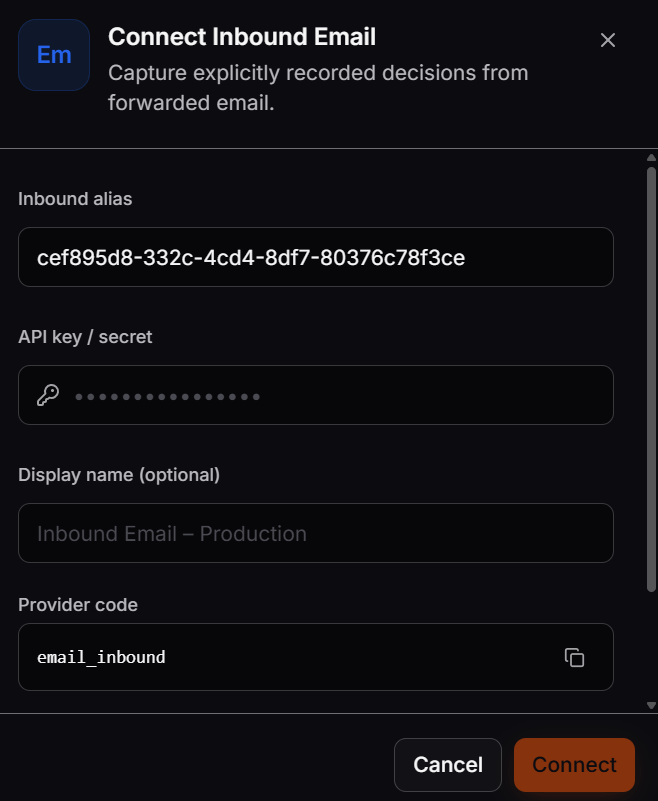
Configure the inbound email channel in Corunner.
1
Enter the inbound alias
Enter the alias assigned to your inbound email channel. Corunner uses it to identify email events sent through this connection.
2
Enter the API key or secret
Paste the credential used to verify incoming email events.
3
Add a display name (optional)
Enter a recognizable name, such as
Inbound Email – Production, to distinguish this connection from other environments.4
Confirm the provider code
Use the provider code configured for the connection, such as
email_inbound.5
Click Connect
Corunner verifies the credential immediately and saves the inbound email connection when validation succeeds.