

What Corunner does with Linear
Corunner treats Linear as a source of truth for engineering work. The Standup Agent pulls in-flight and blocked issues into standup prompts. The Engineering Agent references the issue graph when reasoning about scope, ownership, or delivery risk. Actions like “file a ticket” from chat write directly into Linear.What you get
- Read issues
- Create issue
- Update status
- Fetch blockers
Authentication
Connect with OAuth. A Linear workspace admin approves the scopes during the connect flow.What breaks if you disconnect
- Issue sync
- Blocker tracking
- Standup enrichment
Manage this connection
Open Integrations in the Corunner web app, then find Linear under the Direct Connections tab.Connect Linear
When you click Connect Linear, Corunner opens the Connect Linear dialog and redirects you to Linear. If the redirect does not start automatically, click Continue to Linear.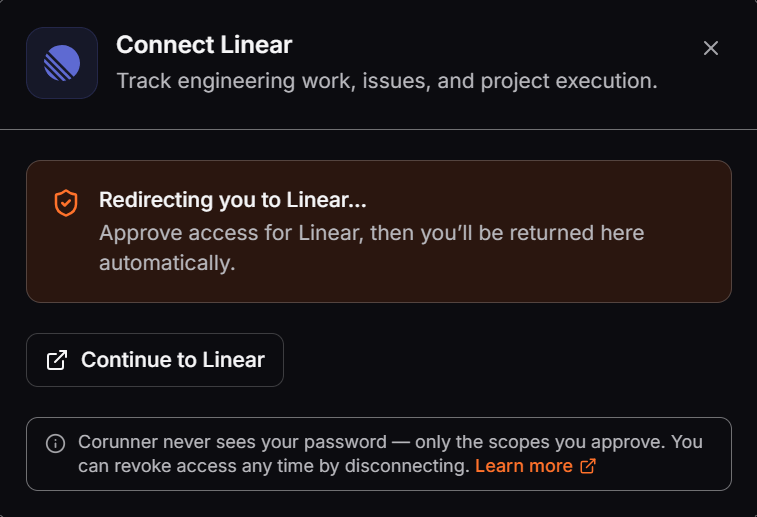
Continue from Corunner to Linear to approve access.
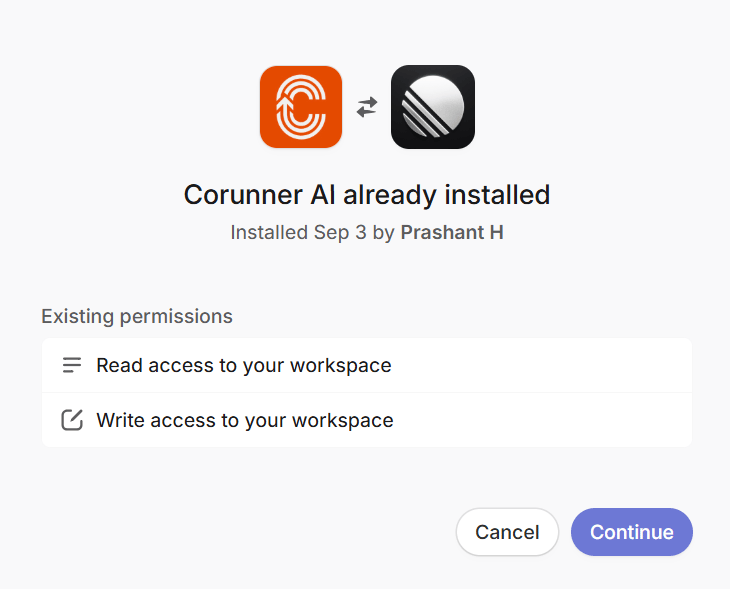
Review the Linear workspace permissions granted to Corunner AI.
1
Review the workspace
Confirm that you are connecting the intended Linear workspace.
2
Review permissions
Confirm that Corunner AI has read and write access. Read access lets Corunner retrieve issues and blockers. Write access lets it create issues and update their status.
3
Click Continue
Linear approves the connection and returns you to Corunner. The Linear card under Direct Connections then shows the connected state.